- Choose the Right AI Music Video Tools
- AI Music Video Generator
- AI Singing Video Generator
- AI Dancing Video Generator
- AI Lyrics Video Generator
- FAQs
Create music videos from your songs with AI. Whether you want a cinematic narrative, a singing performance, a dance video, or a lyric video, Somio AI offers multiple ways to turn your music into engaging visual content.
This guide walks you through each video type, explains how to use the available settings, compares the video models, and shows you how to write prompts for better results.
Choose the Right AI Music Video Tools
Different music videos require different types of visual generation. Choose the option that best matches what you want to create.
Quick Reference:
| If you want to... | Use |
|---|---|
| Create a cinematic story around your song | AI Music Video Generator |
| Make a character or singer sing along to your audio | AI Singing Video Generator |
| Make a character perform a dance | AI Dancing Video Generator |
| Create synchronized lyrics with a visual background | AI Lyrics Video Generator |
Compare the Video Types:
| Video Type | Video Example | Key Features | Best For |
|---|---|---|---|
| AI Music Video Generator | View Details → | Story-driven visuals, cinematic scenes, consistent characters and environments | Full music videos, narrative videos, concept visuals, cinematic music shorts |
| AI Singing Video Generator | View Details → | Accurate lip-sync, expressive performances, natural movement | AI singers, virtual performers, singing avatars, lip-sync videos |
| AI Dancing Video Generator | View Details → | Natural dance movement, dynamic choreography, music-driven visuals | Dance performances, K-Pop-style videos, dance challenges, character choreography |
| AI Lyrics Video Generator | View Details → | Animated lyrics, customizable typography, synchronized lyric display | Lyric videos, karaoke videos, music promotion, social media clips |
AI Music Video Generator
The AI Music Video Generator is designed for story-driven music videos. Describe the story, characters, environment, visual style, and mood you have in mind, and AI can turn your concept into cinematic video scenes.
It works especially well for:
• Full-length music videos
• Narrative music videos
• Concept albums and visual projects
• Cinematic music shorts
• Promotional music content
How to Create a Music Video
Add Your Music
Upload your own audio or select a song from your Library.
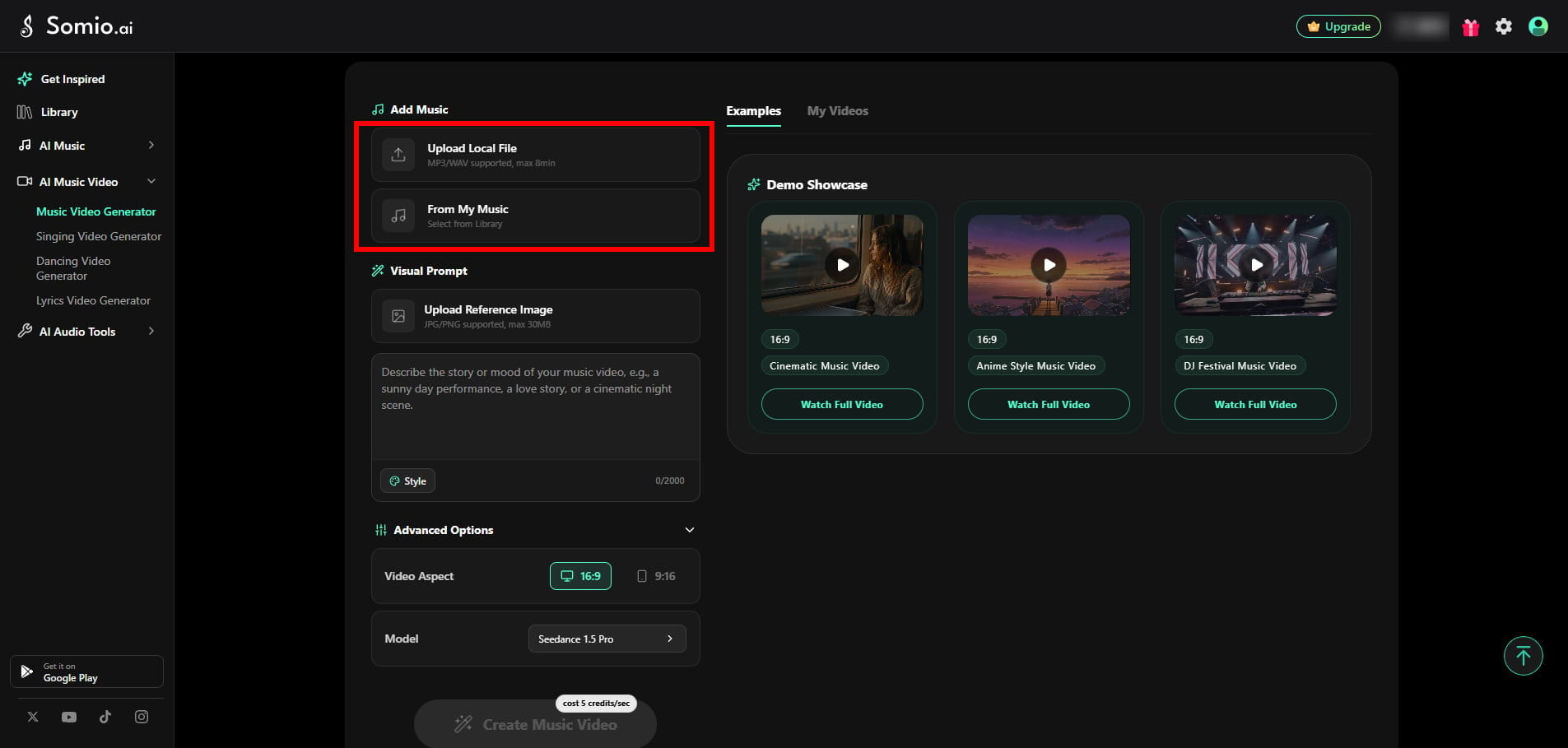
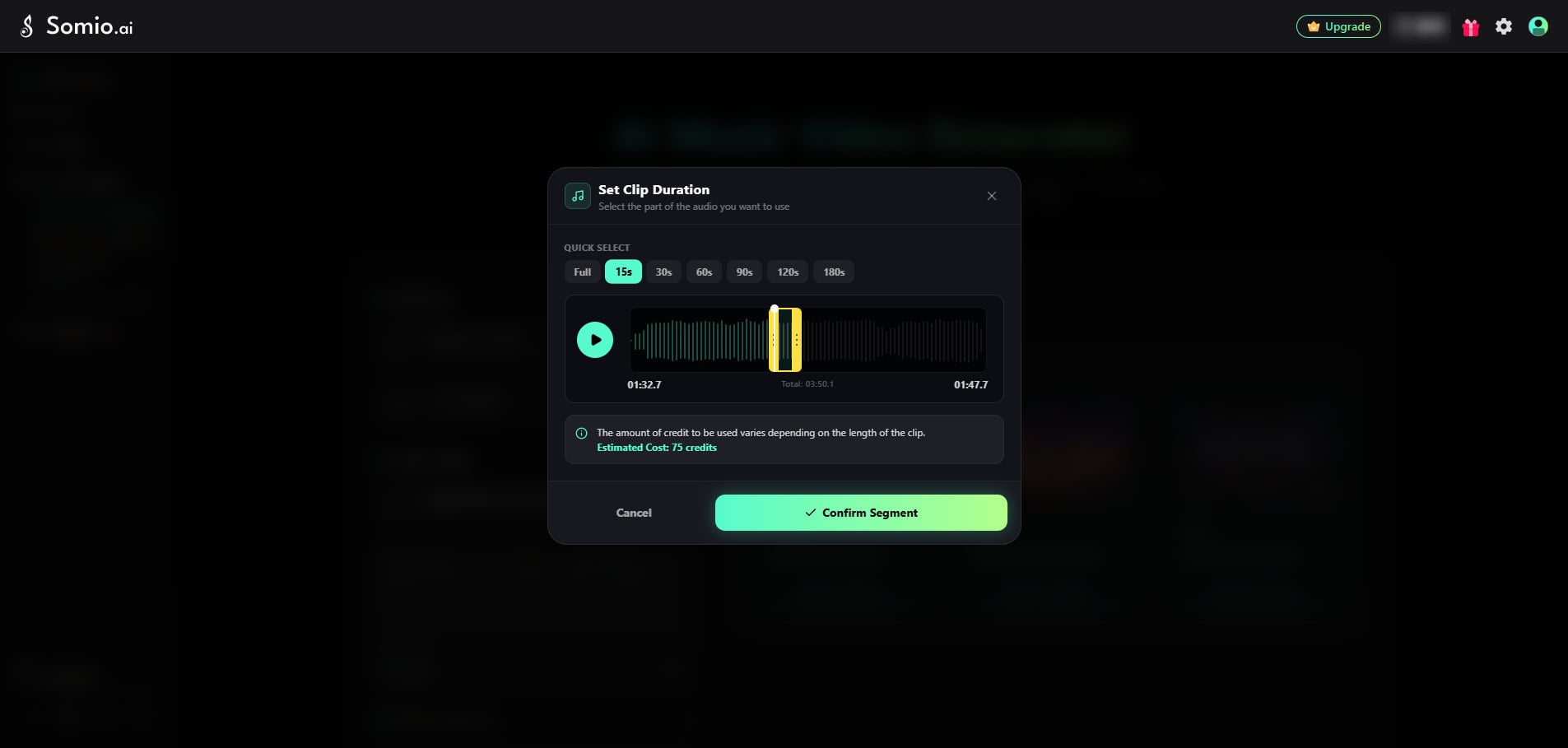
Then select the part of the song you want to turn into a video. You can choose a preset duration or drag the timeline to select a specific section. A 10-second segment is selected by default, while tracks shorter than 10 seconds are set to Full automatically. The selected segment must be at least 3 seconds long.
Set Your Visuals
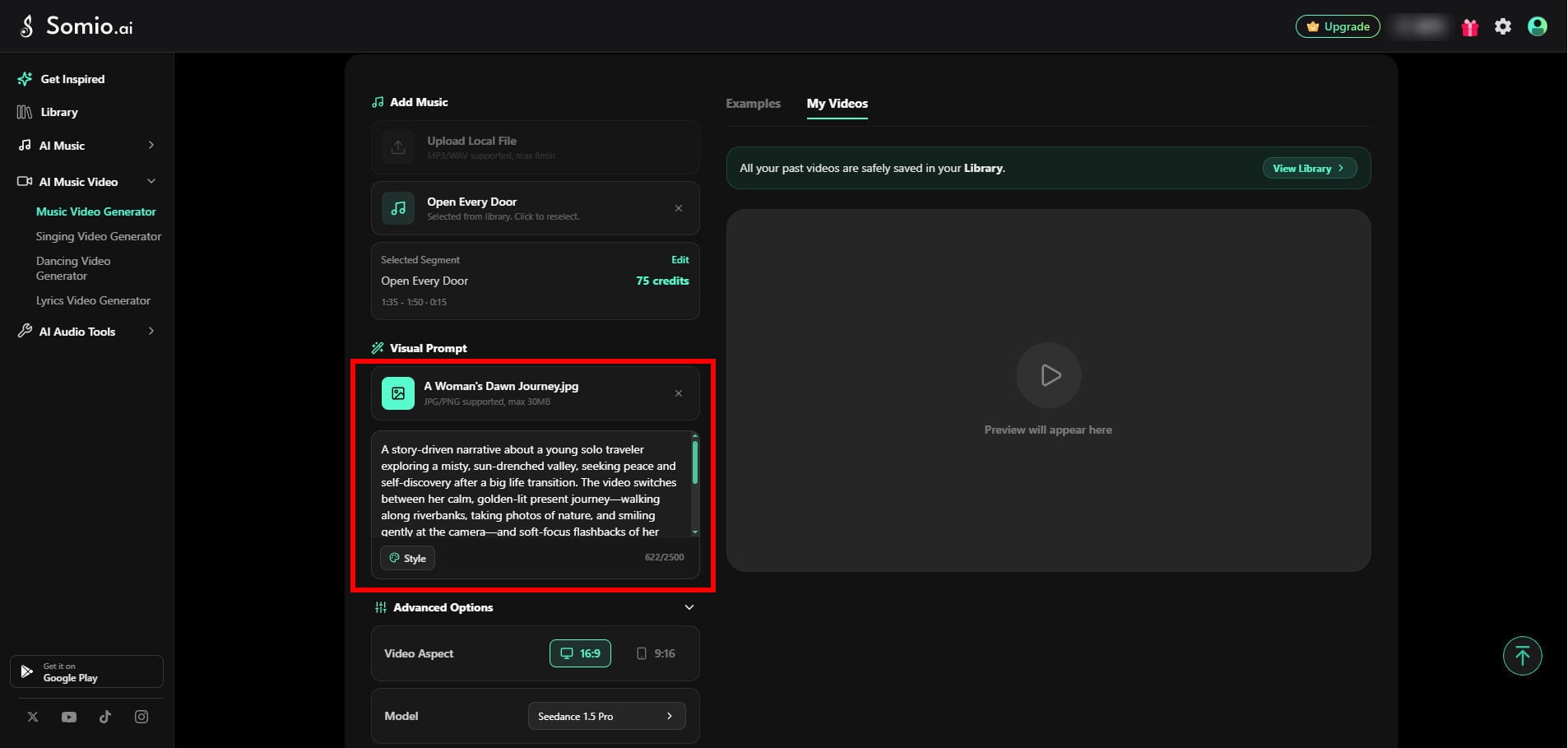
Add a reference image and describe the video you want to create with a visual prompt.
Reference Image
A reference image is optional, but a clear, high-quality image can give the model a stronger visual starting point. JPG and PNG images up to 30 MB are supported.
Visual Prompt
Use your prompt to describe the look, action, and story you want to see. You can include the main character, setting, actions, visual style, colors, lighting, mood, and story progression.
The prompt supports up to 2,000 characters. More specific descriptions generally give the model clearer direction and help create more coherent visuals.
You can also choose a Style preset to quickly define the overall visual style of your video.
Adjust Your Settings and Generate
Before generating, choose the video ratio and model that best fit your project.
Video Ratio
• 16:9 — Recommended for traditional music videos, YouTube videos, and landscape content.
• 9:16 — Recommended for TikTok, YouTube Shorts, and other vertical short-form content.
Video Model
Choose a model based on your desired quality, motion complexity, generation speed, and credit usage.
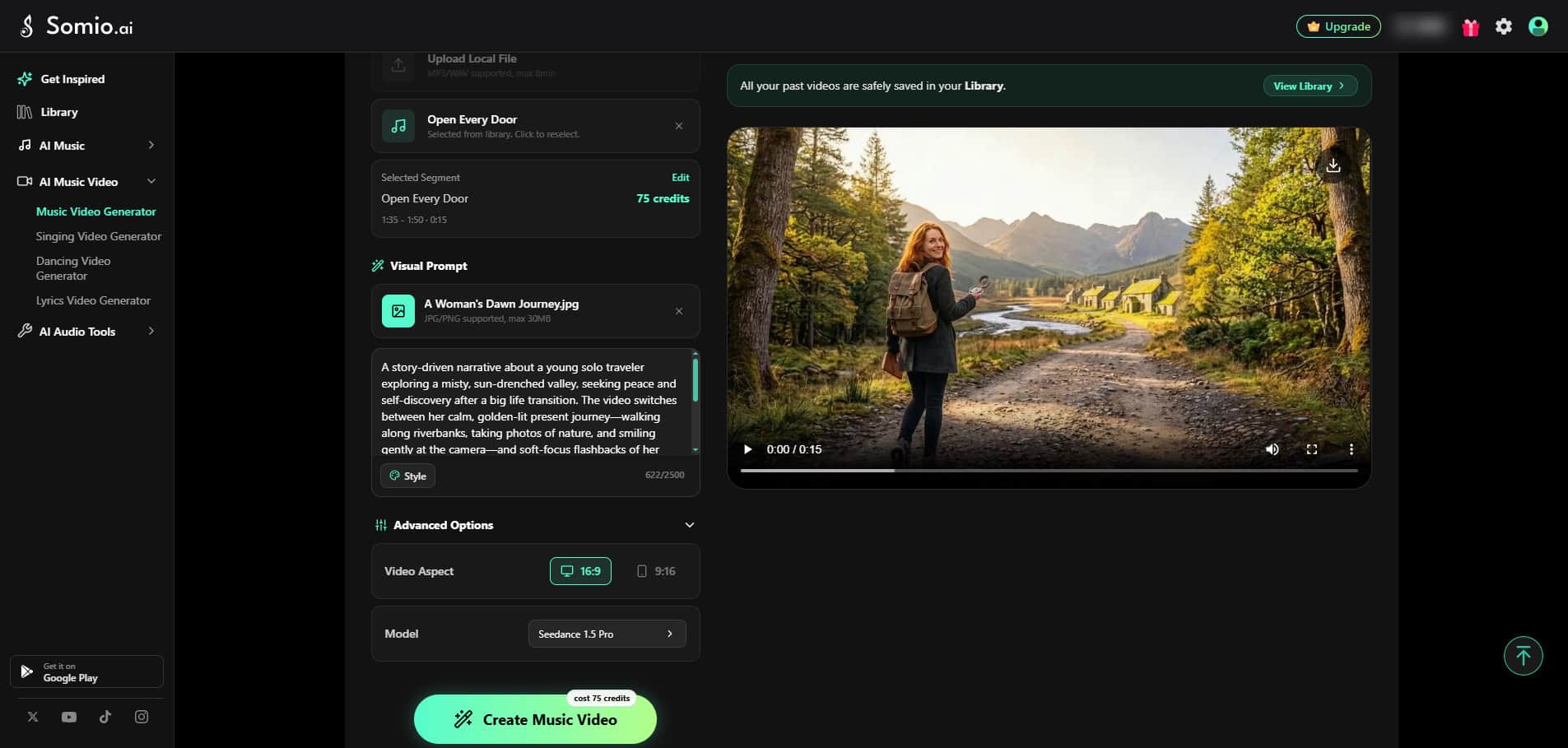
Once your settings are ready, click Create Music Video to start generating.
Video Model Guide
Different models are optimized for different types of music video creation. Higher-end models generally provide stronger visual quality and more advanced motion generation, while lightweight models are useful for faster iterations and lower credit usage.
| Model | Quality | Key Strengths | Best For |
|---|---|---|---|
| Seedance 2.5 | Next-Gen Ultra-HD (Master Studio Grade) | Next-generation cinematic realism, frame-precise creative control, ultra-realistic motion and scene detail | Long-form cinematic storytelling, multi-scene music videos, advanced commercial content |
| Google Veo 3.1 Standard | Cinematic Ultra-HD | Ultra-high-definition synthesis, realistic physics, complex lighting | Cinema-style sequences, blockbuster VFX, commercial content |
| Seedance 2.0 | Cinematic Ultra-HD (Studio Grade) | Cinematic realism, complex motion, highly detailed visuals, realistic physics | Professional music videos, commercial-quality content, high-end visual effects |
| Kling 3.0 | Cinematic HD | Strong spatial coherence, realistic motion, advanced camera movement | Dynamic camera work, complex movement, cinematic sequences |
| Seedance 2.0 Fast | Studio Grade HD | Smooth motion, fast generation, strong multi-frame stability | Social media clips, fast-paced videos, rapid iterations |
| Seedance 2.0 Mini | Standard HD | Lightweight generation, fast iterations, reliable results | Drafts, previews, and high-volume content |
| Seedance 1.5 Pro | High Definition | Stable performance, consistent lighting, efficient generation | Everyday content, budget-conscious projects, quick drafts |
How to Choose a Model
For the highest-end cinematic quality: Choose Seedance 2.5.
For cinematic quality: Choose Google Veo 3.1 Standard or Seedance 2.0.
For dynamic camera movement: Choose Kling 3.0.
For a balance between quality and speed: Choose Seedance 2.0 Fast.
For quick previews and testing: Choose Seedance 2.0 Mini.
For lightweight, everyday creation: Choose Seedance 1.5 Pro.
Keep in mind that model credit usage varies. Higher-quality models generally require more credits per second.
How to Write Better Music Video Prompts
A good prompt gives AI a clear creative direction.
Instead of simply describing an emotion such as "sad love song" or "beautiful music video," give the emotion a visual form through characters, environments, actions, colors, and story. View Prompt Examples Directly →
A useful starting formula is:
You do not need to follow this formula word for word. Use it as a checklist to make sure your idea contains enough visual information.
Tell AI who or what the video focuses on.
Instead of:
Try:
The second prompt gives AI a clear subject that can actually appear on screen. You can describe:
Music Video Prompt Examples & Mistakes
Music Video Prompt Examples
Concept: Regret, lost love, and memory
Common Prompt Mistakes
Too vague:
The concepts are clear to a human, but they do not tell AI what should actually appear in the frame.
Better:
The abstract emotions are now represented through specific characters, locations, colors, and actions.
Tips for Better AI Music Video Results
Use Clear, High-Quality Reference Images
For music video generation, your reference image provides the visual foundation for the video.
For the best starting point:
• Use a sharp, high-resolution image
• Make the main subject clearly visible
• Avoid heavily obscured faces or bodies
• Keep the main subject clearly separated from the background
• Use a single main subject when the feature requires it
Match the Model to the Motion
For simple movement, a faster model can be sufficient.
For complex choreography, rapid movement, detailed facial performance, or cinematic camera movement, consider using a higher-end model.
AI Singing Video Generator
The AI Singing Video Generator is designed for videos where a character or person performs along with your audio.
It is ideal for:
• AI singers
• Virtual performers
• Singing avatars
• Cover-song visuals
• Singing characters
• Music creators who want a visual performer
Unlike the Music Video Generator, this mode focuses on performance and lip-sync.
How to Create a Singing Video
Add Your Music
Upload your own audio or select a song from your Library. You can use MP3, WAV, M4A, or AAC files up to 5 minutes and 5 MB.
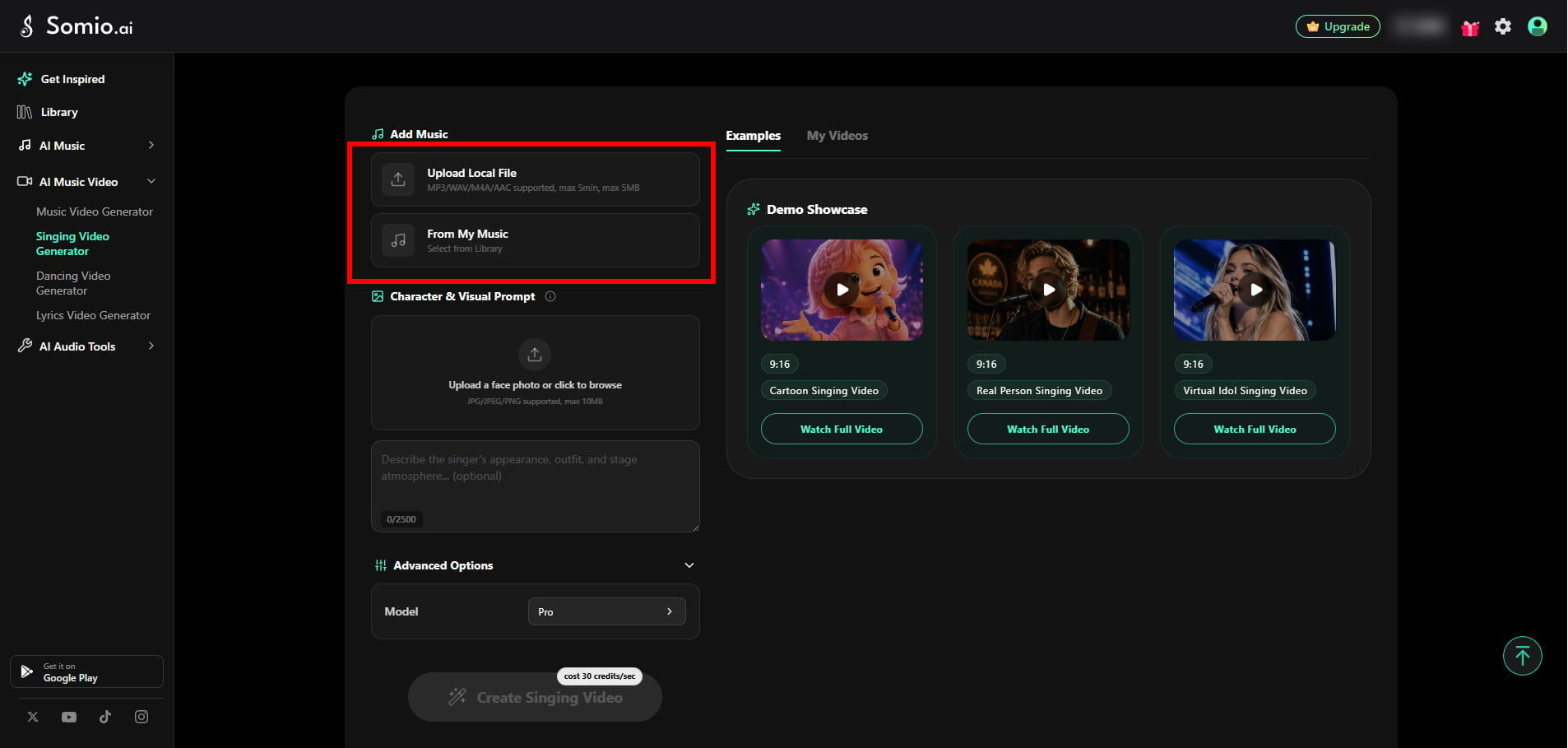
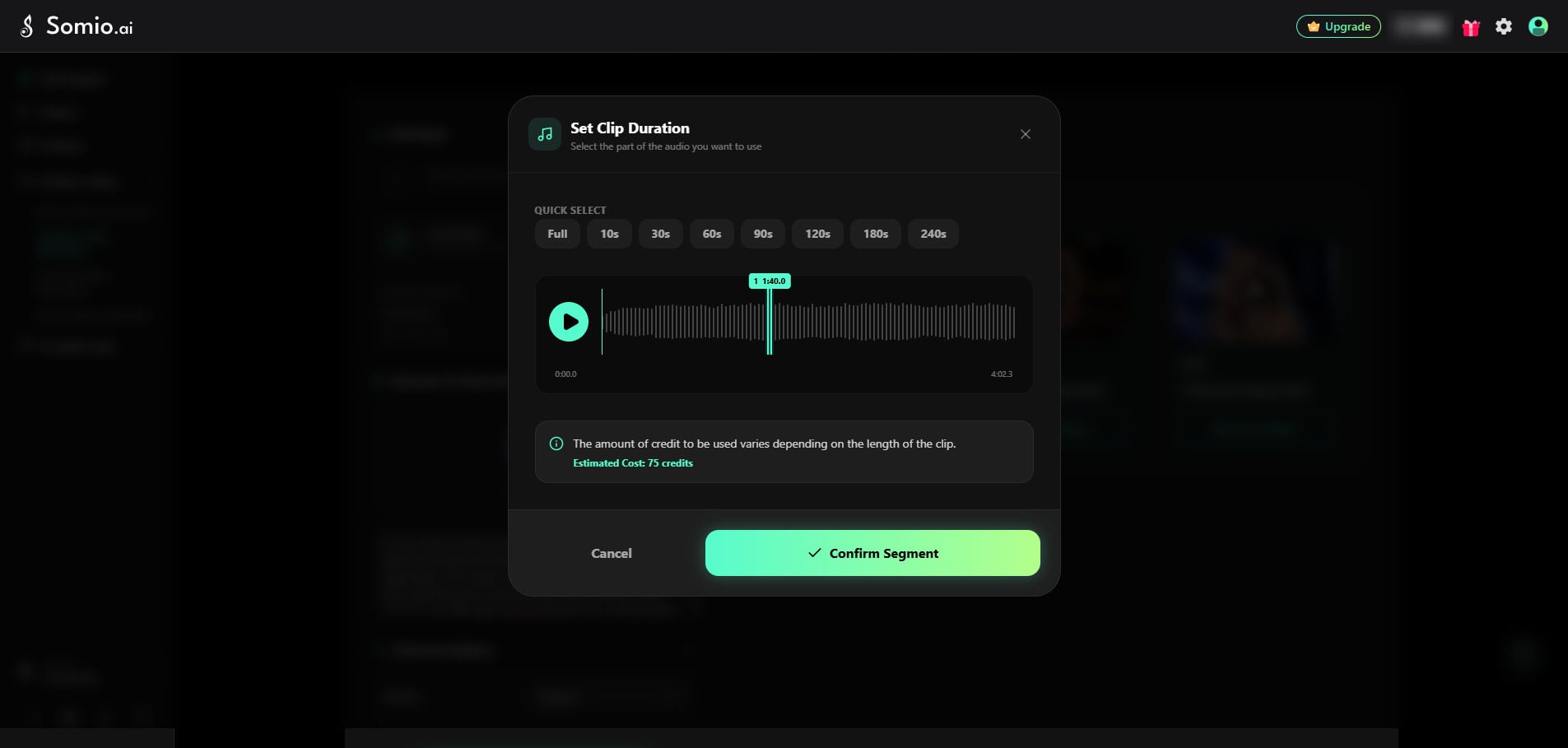
Then choose the part of the song you want to use. Select a preset duration or drag the timeline to choose a specific section. The selected segment must be at least 3 seconds long.
Upload a Character Image
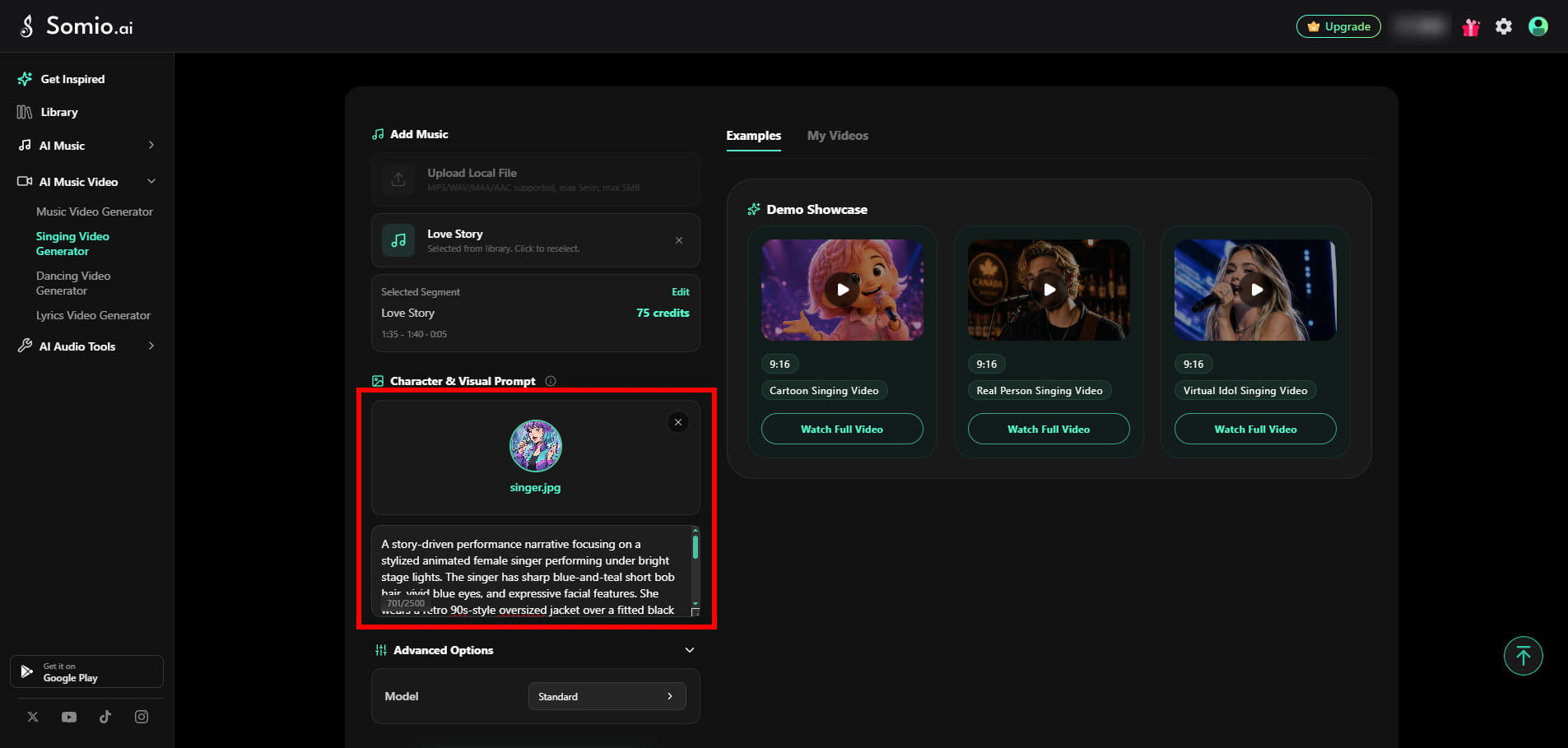
A character image is required. Upload a clear JPG or PNG image of the person or character you want to perform. A front-facing image with a single, clearly visible subject generally works best. You can use a real person, animal, illustrated character, or other suitable subject. The maximum image size is 10 MB.
A prompt is optional. Leave it empty if you simply want the character to sing along with your audio, or use it to add movements, instruments, expressions, or background details.
For example:
You can use prompts to describe:
• Character movements
• Instrument performance
• Simple dancing
• Facial or body movements
• Background elements
• Lighting
• Overall atmosphere
The prompt can contain up to 2,500 characters.
Choose a Model and Generate
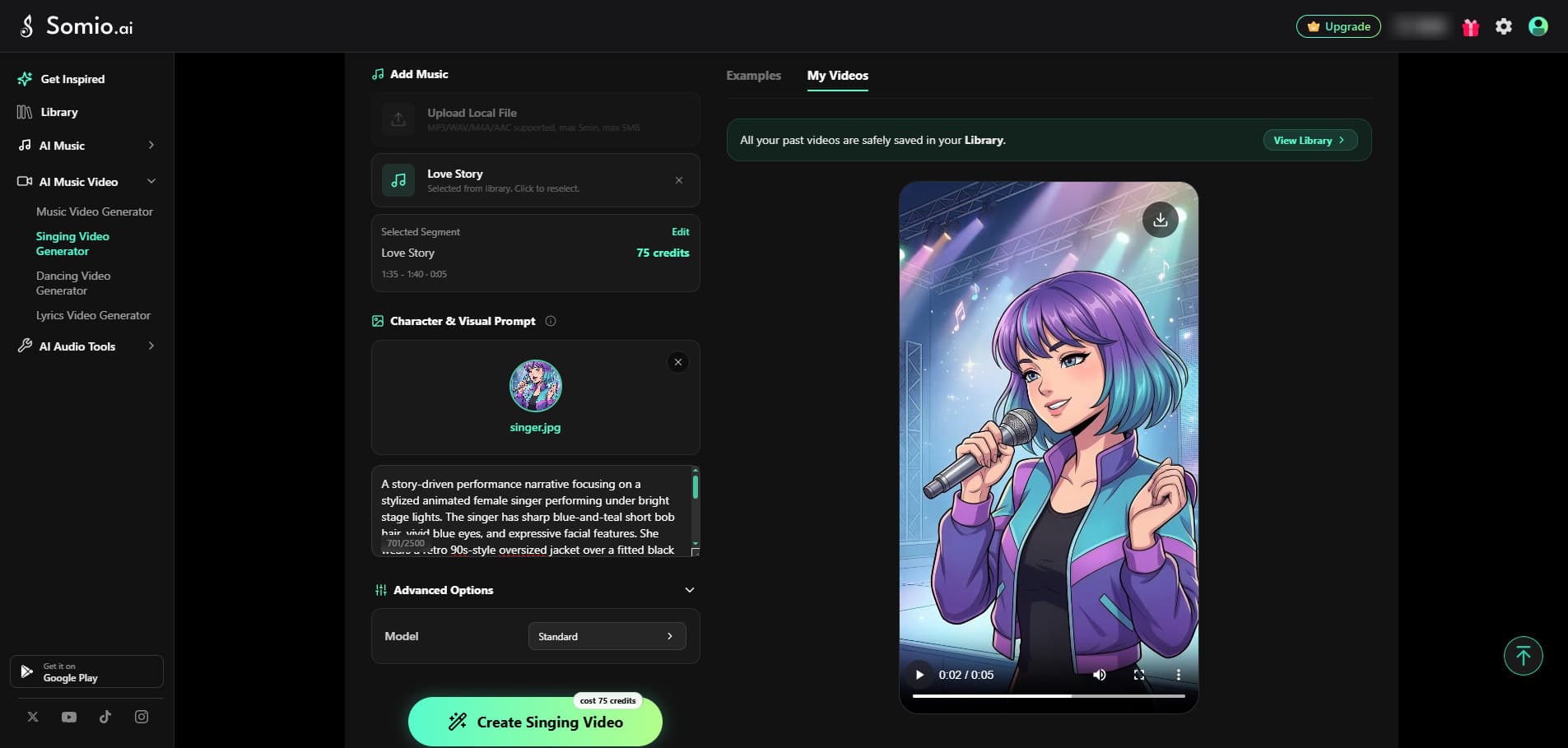
The Singing Video Generator currently offers Standard and Pro modes.
| Standard | Pro | |
|---|---|---|
| Video Quality | HD quality | Higher-definition, more refined visual quality |
| Lip-Sync | Good for straightforward singing and speech | More precise lip-sync, especially for fast vocals and rap |
| Facial Expressions | Basic facial movement | More detailed facial expressions and subtle movements |
| Head & Body Movement | Smaller movements | More natural head and body movement |
| Generation Speed | Faster | Generally slower |
When to Use Standard
Standard is a good choice when:
• You want a quick singing video
• The performance has relatively simple movement
• The character is shown from a medium or long distance
• You are testing different ideas
When to Use Pro
Pro is recommended when:
• Accurate singing lip-sync is important
• The vocals are fast or rhythmically complex
• The video includes rap or rapid lyrics
• The face appears in close-up shots
• You want more expressive facial and body movement
• You are creating polished music or promotional content
AI Dancing Video Generator
The AI Dancing Video Generator lets you animate a character using a dance reference or a ready-made dance template.
It is useful for:
• Dance music videos
• K-Pop-style performances
• Dance challenges
• Character choreography
• Anime or 3D character dancing
• Short-form social content
How to Create a Dancing Video
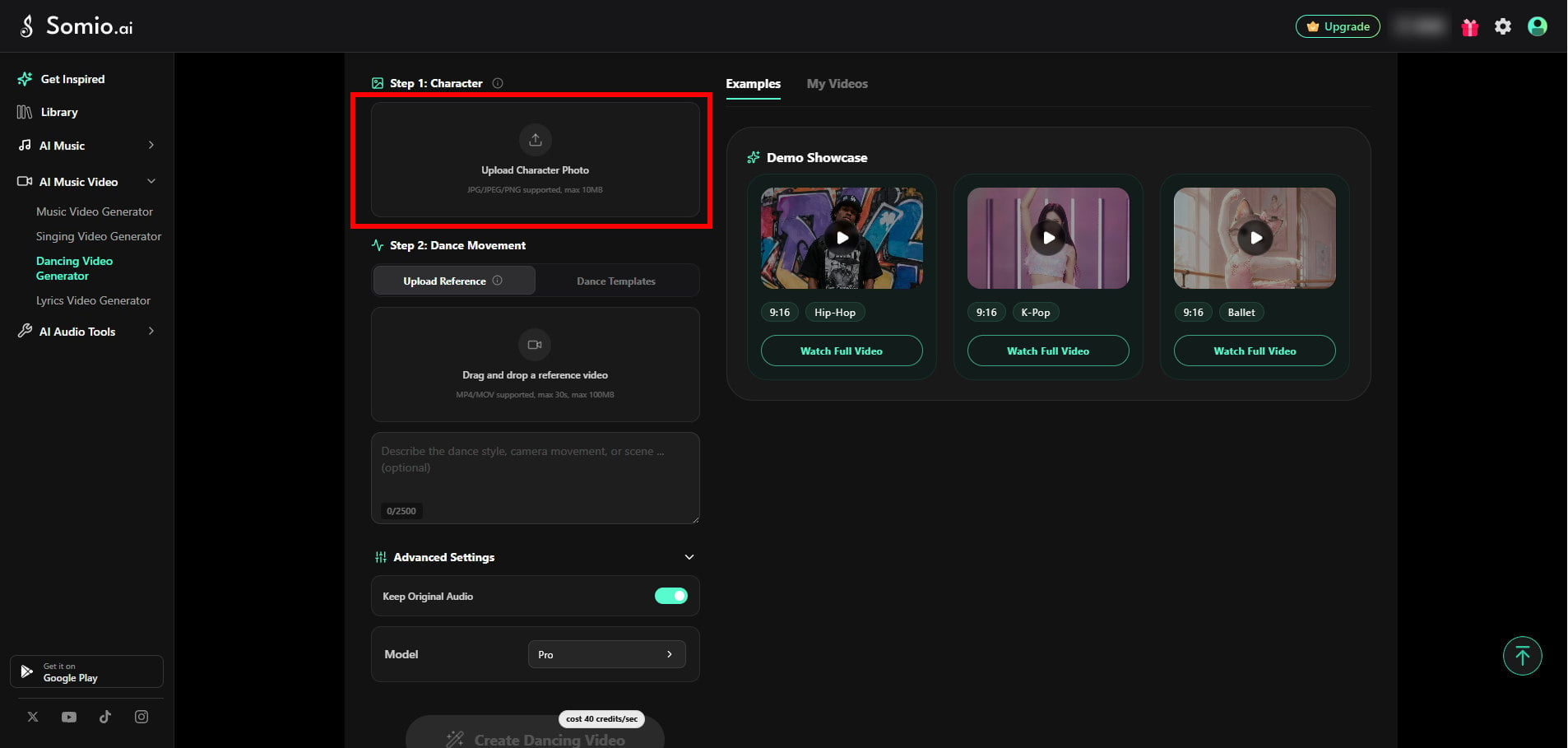
Upload Your Character
Upload a JPG, JPEG, or PNG image of the person or character you want to animate. A clear, high-quality image with one main subject works best. A front-facing view is recommended when possible. You can use a person, animal, illustrated character, or other suitable subject. The maximum image size is 10 MB.
Choose a Dance Method
There are two ways to create the movement.
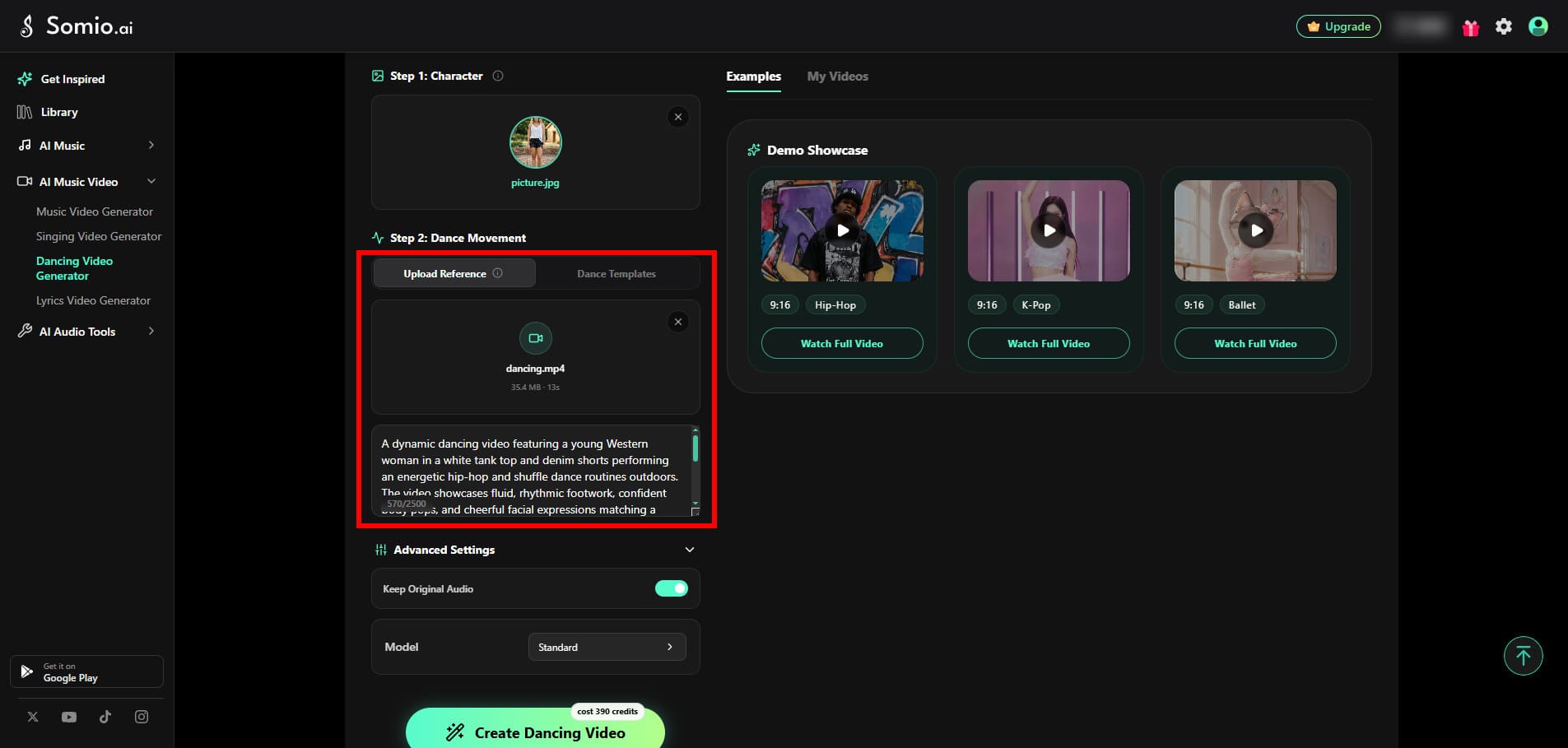
Option 1: Upload a Reference Video
For a custom performance, upload an MP4 or MOV video of up to 30 seconds and 100 MB. A single dancer who remains clearly visible throughout the video generally produces better results. You can also add an optional prompt to describe the background, lighting, atmosphere, or visual style.
You can also add an optional prompt to describe additional visual requirements.
For example:
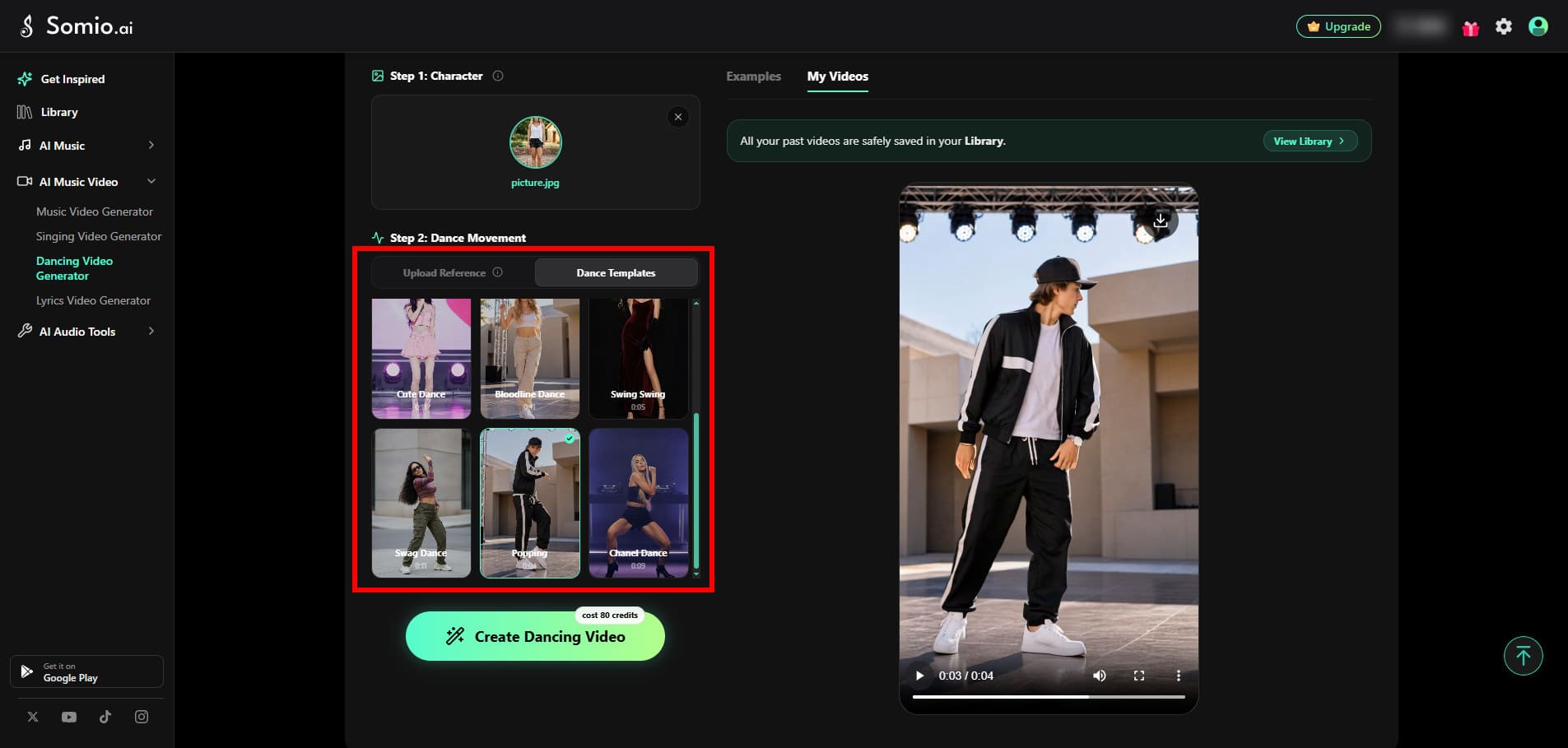
Option 2: Use a Dance Template
Choose from the available dance templates to quickly generate a dancing video without preparing your own reference video.
Templates are useful when you want a simple and fast way to try different dance styles.
Choose a Model and Generate
The Dancing Video Generator offers Standard and Pro modes for reference-based generation.
| Standard | Pro | |
|---|---|---|
| Movement Tracking | Suitable for simpler movements | More detailed movement and joint tracking |
| Complex Movement | Best for slower or moderate movements | Better for fast, large, and complex movements |
| Camera Movement | Works well with simpler camera motion | Better at maintaining the relationship between camera and character movement |
| Visual Quality | HD quality | Higher-definition visual quality |
| Generation Speed | Faster | Generally slower |
When to Use Standard
Standard works well for:
• Slow or moderate movements
• Small gestures
• Gentle swaying
• Walking
• Simple choreography
• Medium or long shots
When to Use Pro
Pro is a better choice for:
• K-Pop choreography
• Hip-Hop dance
• Fast-paced movement
• Large body movements
• Spins and jumps
• Complex choreography
• Close-up or half-body shots
If the reference contains complex movements, Pro can help preserve the character's body structure and movement more naturally.
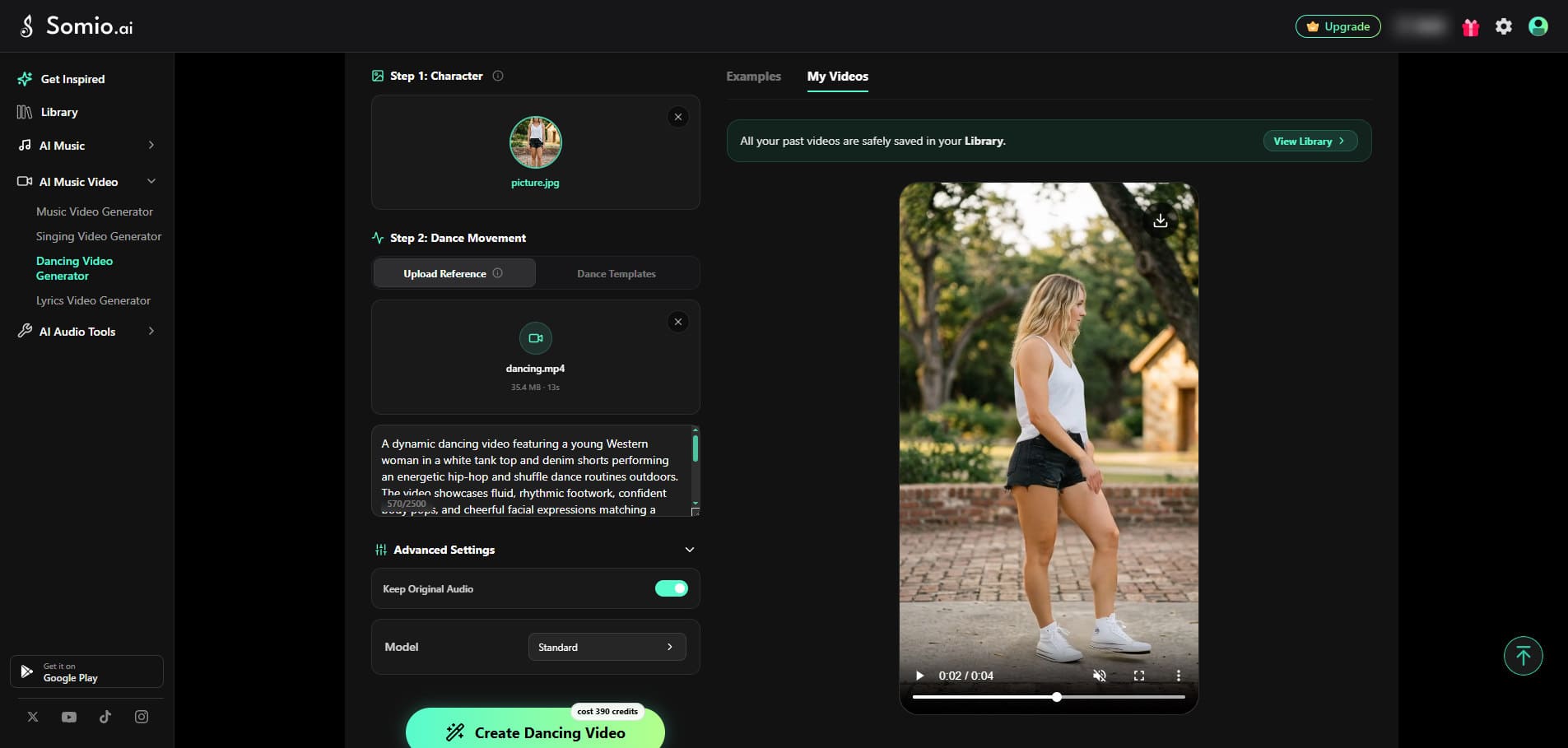
Preserve the Original Audio
The original audio is kept by default.
Turn this option off if you want to generate a silent dancing video and add music or other audio during post-production.
AI Lyrics Video Generator
The AI Lyrics Video Generator creates music videos that combine your song, a visual background, and synchronized lyrics.
It is useful for:
• Lyric videos
• Karaoke videos
• New-song promotion
• Social media music clips
• Music content with animated lyrics
How to Create a Lyrics Video
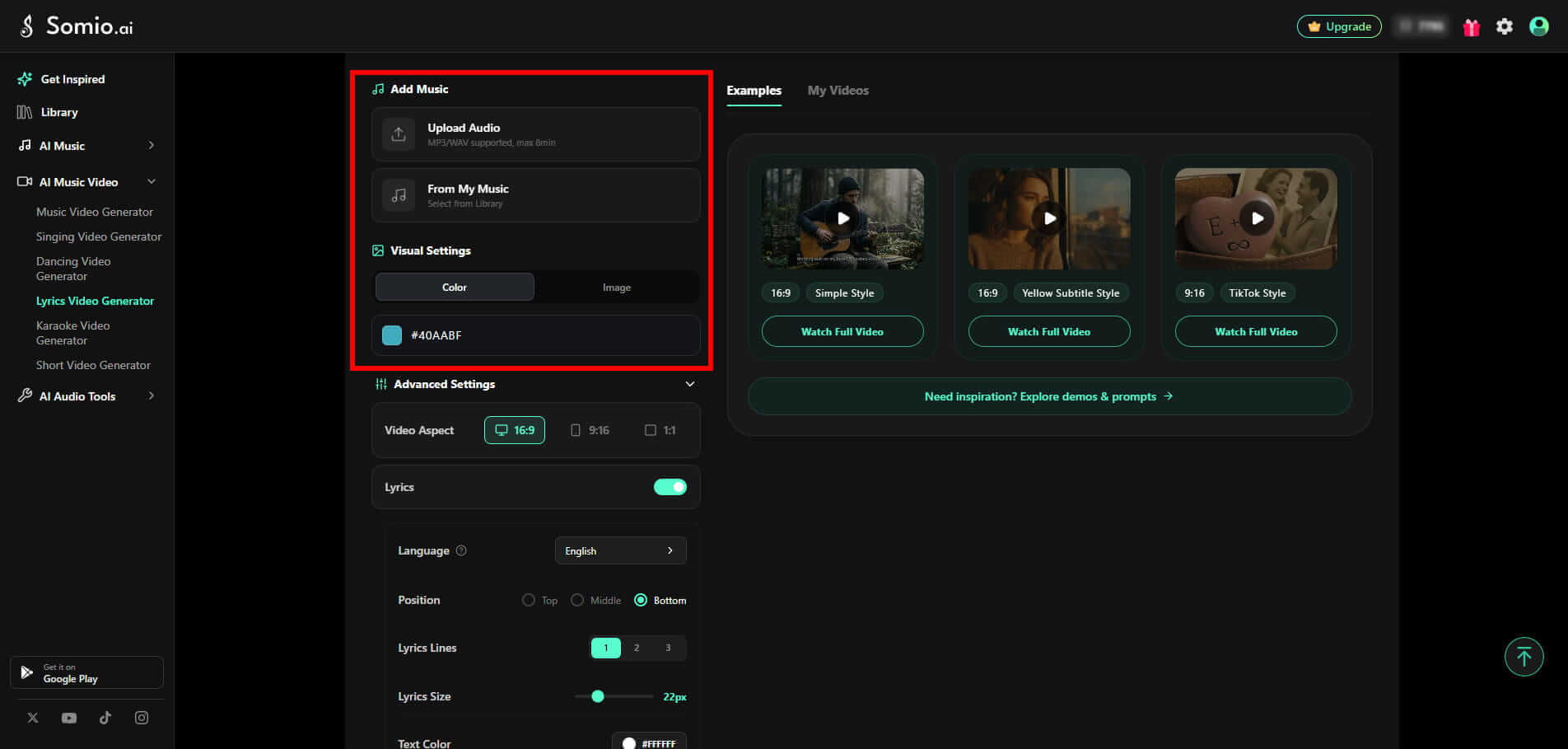
Add Your Music and Choose a Background
Upload your music or select a song from your Library. Supported upload formats include MP3 and WAV, and songs can be up to 8 minutes long.
Then, choose a background for your video. You can use a solid color, upload a JPG, PNG, or GIF image, or describe what you want and let AI generate a background for you. AI-generated background images are available with a paid plan. You can also download and reuse generated images.
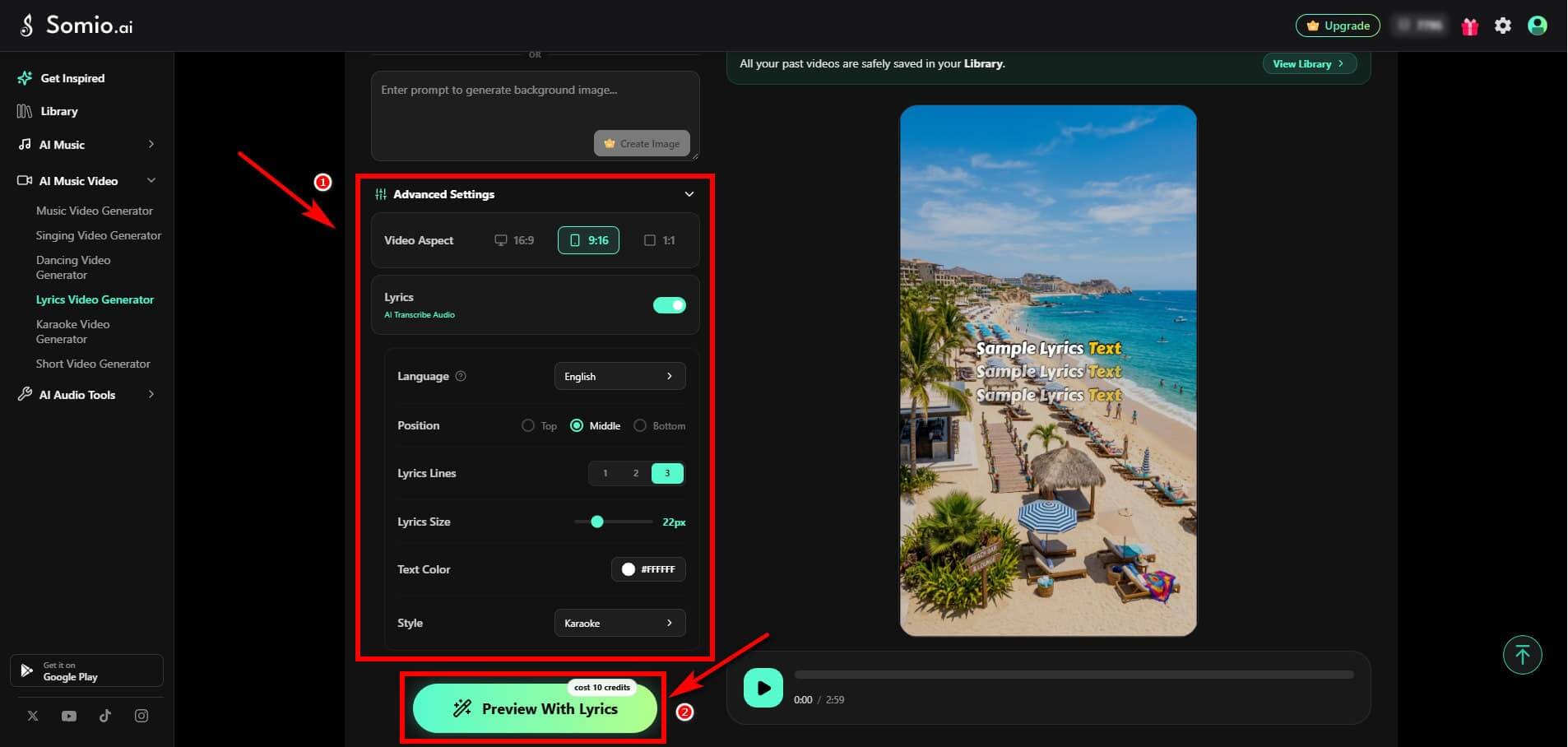
Customize Your Video and Lyrics
Choose a video ratio and customize how your lyrics appear.
Video Ratio
• 16:9 — Best for YouTube and other landscape content.
• 9:16 — Best for TikTok, YouTube Shorts, and other vertical content.
• 1:1 — Best for square content on social media and other platforms.
You can also customize the language, lyric position, number of lines, font size, active lyric color, font style, and display style. Some styles, including Karaoke, Handwritten, and TikTok, support word-by-word animation.
Then click Preview With Lyrics to start transcribing the lyrics and preview your video with the settings you selected.
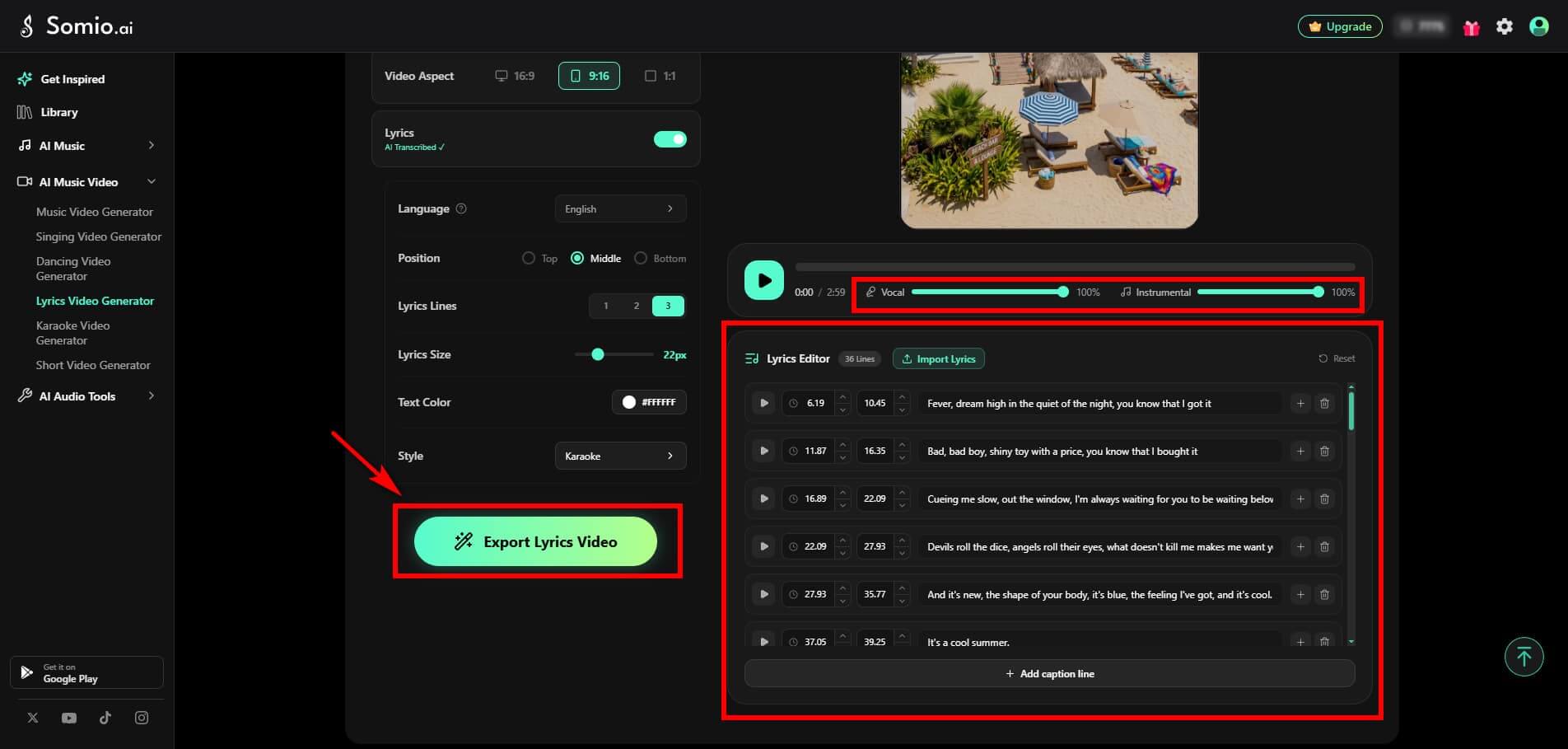
Edit and Sync Your Lyrics
Review and fine-tune the automatically transcribed lyrics in your video. You can correct the lyric text, adjust line breaks, change the layout, add or remove lyrics, or reset them to the original transcription.
If the transcription needs substantial changes, simply import the correct song lyrics. The lyrics will then be automatically aligned with the vocals at the word level for more precise timing.
You can also adjust the Vocal and Instrumental volumes separately before final exporting.
Click Export Lyrics Video to create the final video when everything looks right.
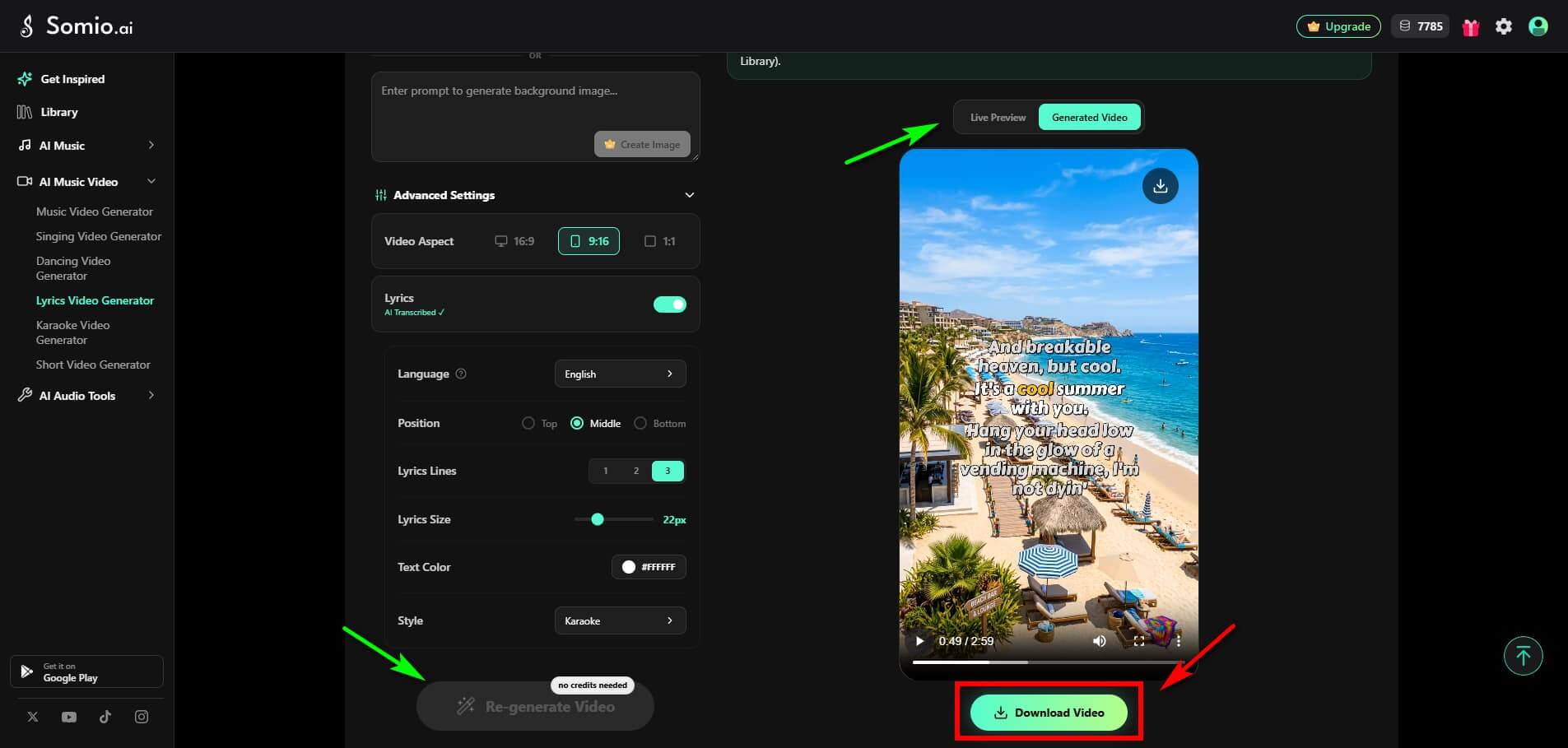
Download the Final Video
Once generation is complete, click Download Video to save your video.
If you want to make further changes, return to Live Preview to adjust your visual settings and other available options, then click Re-generate to create an updated version without using extra credits.
You can also leave the page while the video processes. Once generation is complete, the finished video will be available in your Library.
FAQs
- Why can't I upload my reference image or why does it show a copyright warning?
Some models have restrictions on reference images that contain real human faces, including AI-generated ones. The models set these restrictions to help prevent copyright and identity-related issues. If a model has this restriction, it will be clearly indicated next to the model when you select it. Try switching to a supported model or using a reference image without a human face, such as an illustrated character, a 3D character, an object, a landscape, or concept art.
- Why does my generation fail with a "Sensitive Content" message?
Your reference image or prompt may contain content that is detected as sensitive by the safety system. This may include nudity, sexual content, violence, graphic content, or politically sensitive information. To resolve the issue, review your prompt and remove any potentially sensitive or borderline words. English prompts are recommended for clearer and more reliable content detection. If you are using a reference image, try replacing it with a compliant one and resubmit the generation.
- Why is my video still "Generating" or showing a "Timeout" or "Network Error" message?
Video generation may take a little longer depending on the model and the complexity of your video, especially during periods of high demand. If a task remains stuck or shows Failed or Timeout in your Library, click Retry to submit the task again. The system will automatically queue it for another gattempt at generation.
- Will I lose credits if my video generation fails or times out?
No. Credits will not be lost if video generation fails. The way they are returned depends on whether the generation has started.
• Suppose a progress bar has not yet started showing. Due to a network timeout or safety review, the reserved credits will be automatically refunded in full within 30 minutes.
• If a progress bar is already displayed, the task will be locked. You can click Retry in your Library to continue the same generation task without being charged additional credits. If the retry also fails, please contact our support team, and we will manually refund the corresponding credits.
- Why do faces, hands, or movements look distorted in my video?
Complex motion can be challenging for AI video models, particularly when a scene contains fast movement, large body movements, or several actions at once. Try:
• Simplifying the prompt
• Reducing the number of simultaneous actions
• Using a higher-end model
• Providing a clear, high-quality reference image
For dance videos, Pro mode is generally better suited to complex choreography.
- Why doesn't the singer's lip-sync match the music?
The AI Music Video Generator currently does not provide lip-sync. If your video requires a character to sing along with your audio, use the AI Singing Video Generator, which is specifically designed for singing performance and lip-sync. For demanding vocals such as fast singing or rap, Pro mode is recommended.
- How long does video generation take?
Generation time varies depending on the model, video length, scene complexity, and current server load. A full 3–8 minute music video typically takes around 15–30 minutes to complete. During periods of high demand, generation may take longer.
- Why is video generation sometimes faster or slower?
Generation speed mainly depends on the video model, server load, and scene complexity.
• Video model: Different models have different processing speeds. Lightweight or fast models generally generate faster, while higher-end models may take longer.
• Server load: During peak hours, more tasks may be queued, increasing generation time.
• Scene complexity: Complex movements, visual effects, or other demanding scenes may require more processing time.
- Can I close the page while my video is generating?
Yes. Once you submit a generation task, processing continues in the background. You can close the page or leave the app without interrupting the generation. When the video is ready, return to your Library to view and download it.